Learn how to add clickable links to your TikTok and Instagram bio in minutes. Complete step-by-step guide for multiple links, tracking, and troubleshooting.
How to Add a Link to Your TikTok Bio: The Complete Step-by-Step Guide for 2026
If you've spent any time on social media, you've probably seen "link in bio" mentioned in captions. But what does that actually mean, and more importantly, how do you set it up yourself? Whether you're using TikTok, Instagram, or both, this guide walks you through everything you need to know about adding clickable links to your bio.
Table of Contents
- What Does "Link in Bio" Mean?
- How to Add a Link to Your TikTok Bio
- How to Add a Link to Your Instagram Bio
- How to Add Multiple Links to Your Bio
- Important Things to Know Before Adding Your Link
- What If You Can't Add a Link to Your Bio?
- Why People Use "Link in Bio" Strategies
- Putting It All Together
What Does "Link in Bio" Mean?
Let me start with the basics because not everyone knows what this phrase actually means. When someone says "link in bio," they're referring to the single clickable URL that appears in your profile biography section. On most platforms, you can only have one live link that your followers can click directly from your profile.
Think of it as your gateway to everything you want to promote—whether that's your website, a product page, a YouTube channel, or a signup form. Instead of sharing random links in comments or captions (which most platforms don't allow anyway), you direct your audience to check your bio. It's the most direct path between your social media followers and wherever you want them to go next.
The phrase "link in bio" has become so common that brands and creators now use it constantly. You'll see it in Instagram captions, TikTok video descriptions, YouTube channel descriptions, and everywhere else on social media. It's basically shorthand for "go to my profile and click the link there."
How to Add a Link to Your TikTok Bio
TikTok has made the process pretty straightforward, though there are a few things to keep in mind. Let me walk you through it step by step.
Step 1: Open TikTok and Go to Your Profile
First, open the TikTok app and navigate to your profile. You'll see your profile picture in the bottom right corner of the screen. Tap it to open your profile page.
Step 2: Tap the Edit Profile Button
Once you're on your profile, you'll see an "Edit Profile" button near the top. This is where you manage all your profile information including your bio. Tap it.
Step 3: Find the Website Field
In the edit profile menu, scroll down and look for the "Website" field. This is where you'll paste your link. Tap on this field to enter your URL.
Step 4: Paste Your URL
Now paste the full URL of where you want to send people. This could be your website, a landing page, a product link, or anything else. Make sure you include the "https://" part at the beginning.
Step 5: Save Your Changes
Hit save and you're done. Your link now appears in your TikTok bio and people can tap it directly.
Important Note About TikTok Follower Requirements
Here's something that trips up a lot of new creators: TikTok doesn't let newer accounts add links to their bio. You typically need at least 1,000 followers before TikTok allows you to add a clickable link. Once you hit that milestone, the website field becomes available in your profile settings.
If you're trying to add a link but the option isn't showing up, you probably haven't reached 1,000 followers yet. The good news is that once you do, it's available immediately.
How to Add a Link to Your Instagram Bio
Instagram's process is very similar to TikTok, but there are some platform-specific differences worth noting.
Step 1: Open Instagram and Go to Your Profile
Tap your profile icon at the bottom right of the screen to go to your profile page.
Step 2: Tap Edit Profile
You'll see an "Edit Profile" option near the top. Tap it to access your profile settings.
Step 3: Look for the Website Field
Scroll down to find the "Website" section. Unlike TikTok, Instagram shows this field to most accounts regardless of follower count. This is where you'll add your link.
Step 4: Enter Your Full URL
Paste your complete URL including the "https://" part. Double-check that you've entered it correctly before moving on.
Step 5: Save Your Changes
Save your profile and your link is now live on Instagram.
Pro Tip for Instagram
Instagram only allows one link in your bio. If you want to direct people to multiple destinations, you'll need to use a landing page tool or biolink service. These services create a custom page with multiple clickable options, and you put that page's link in your Instagram bio. It's a workaround that many creators and businesses use effectively.
How to Add Multiple Links to Your Bio
Since most platforms only allow one link in your bio, what do you do if you want to send people to multiple places? This is where biolink pages come in handy.
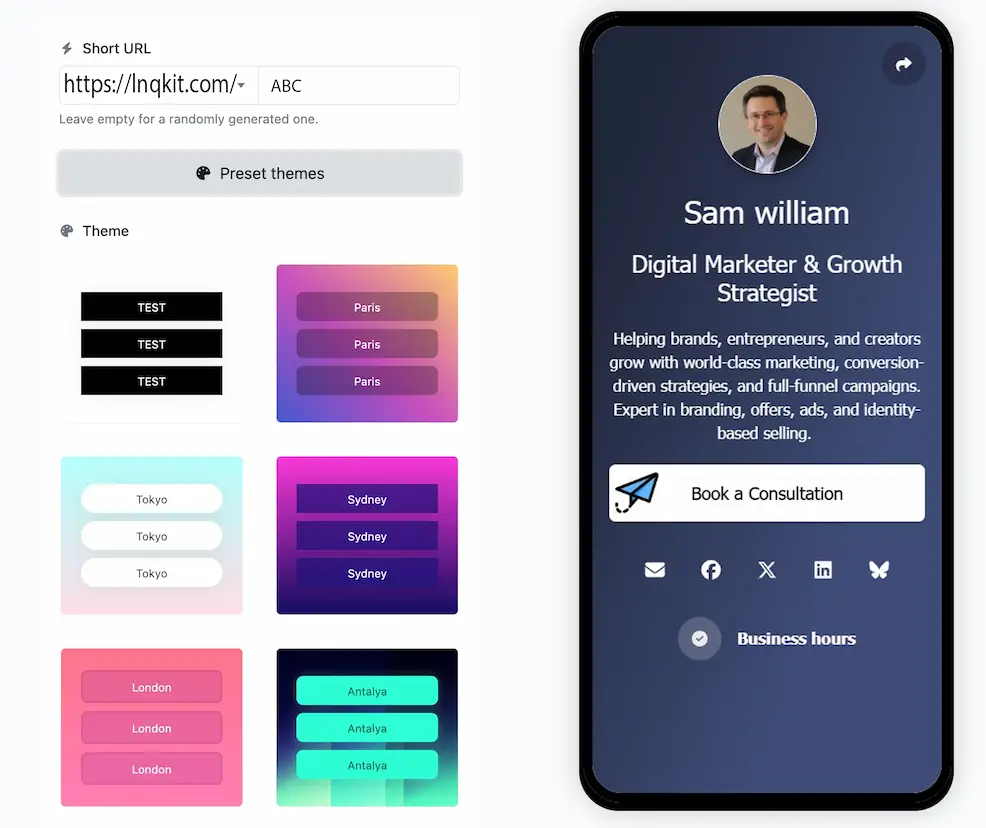
A biolink page creates a custom landing page that lives at your own URL. You add that main URL to your social media bio, and when people click it, they see a page with multiple options to choose from. Your followers can then select exactly what interests them—whether that's your shop, your latest blog post, your YouTube channel, or your newsletter signup.
This approach gives you several advantages. First, you get to see which links your followers actually click through real-time analytics. Second, you can test different arrangements and wording to see what performs best. Third, you can update your links anytime without changing your bio URL. If you share that main link everywhere—business cards, email signatures, other platforms—you never have to update anything. Just change what's on that landing page.
Many creators and businesses use LNQKIT's biolink feature specifically because it combines link tracking with a professional-looking bio page. You get the flexibility of multiple links plus detailed analytics showing exactly which options your audience clicks most.
Important Things to Know Before Adding Your Link
Make Sure Your Link Actually Works
Before you save your bio with a link, test it. Click on it from a different device to make sure it actually goes where you want it to go. Nothing's worse than directing thousands of followers to a broken link.
Use a URL Shortener if Needed
Long URLs look messy in your bio. If your link is super long, consider using a short link with tracking analytics. A good URL shortener not only makes your link cleaner and more shareable, but it also gives you valuable data about who's clicking. This is especially useful if you're running multiple campaigns and need to understand which one performs best.
Track Your Clicks
This is actually really important but often overlooked. When you use link tracking tools, you can see exactly how many people clicked your bio link. This tells you if your audience is interested in what you're promoting. If thousands of people follow you but nobody clicks your link, that's valuable information you can use to improve your strategy.
Update Your Link Occasionally
Your link should match what you're currently promoting. If you're running a seasonal sale, update your link to point there. When the sale ends, change it to something else. Don't leave the same link in your bio for months if it's no longer relevant.
Be Transparent About Where the Link Goes
If you're sharing an affiliate link or something that benefits you financially, it's good practice to mention that. Your followers will appreciate the honesty, and it actually builds more trust in the long run.
What If You Can't Add a Link to Your Bio?
If you're trying to add a link but the option isn't available, here are the most common reasons:
Your account might be too new. Both TikTok and Instagram sometimes restrict certain features for brand new accounts. Give it a few days and try again.
You might not have enough followers yet. TikTok specifically requires 1,000 followers. Instagram is usually more permissive, but some restrictions apply to very new accounts.
Your account could be flagged for violating community guidelines. If you've gotten warnings about spam or other violations, platforms might temporarily disable linking features.
Your account type might be wrong. Make sure you're using the right account type for your needs. Business accounts sometimes have different features than personal accounts.
Why People Use "Link in Bio" Strategies
Creators and businesses use this approach for really practical reasons. Social media platforms make it difficult to share clickable links anywhere except your bio. If you try to post a link in a caption, most platforms either don't make it clickable or actively suppress your post. So the bio becomes the natural place to direct traffic.
It's also useful for tracking. When you use a proper link management tool with built-in analytics, you can see how many people actually clicked your link. This tells you if your audience is interested in what you're promoting. It also reveals which of your social media platforms drives the most engaged traffic.
The real power comes when you combine platform traffic with conversion data. You might discover that your Instagram followers click more but convert less, while your TikTok audience clicks less frequently but converts at a much higher rate. That kind of intelligence lets you make smarter decisions about where to focus your content creation efforts.
Putting It All Together
Adding a link to your TikTok or Instagram bio is straightforward once you know where to look. The process takes maybe 30 seconds, but the impact can be significant. Whether you're directing people to your website, a product, a signup form, or anywhere else, your bio link becomes one of your most valuable digital real estate.
Start with a single, clear link. Test it to make sure it works. Then watch your analytics to see how many people actually use it. If you need to share multiple destinations, invest in a biolink service. Update your link occasionally to keep it relevant to whatever you're currently promoting.
The "link in bio" approach has become standard across social media for a reason—it works. Now you know exactly how to set it up and make it work for you.